Silverlight 4: Applying Style to the Selected DataGrid Cell during Edit Operation
Posted by: Mahesh Sabnis ,
on 8/28/2011,
in
Category Silverlight 2, 3, 4 and 5
Abstract: The Silverlight DataGrid has lots of events for User Interaction. One of the event provided is PreparingCellForEdit, which is raised when a cell in the DataGrid column enters Editing mode. During this event, the DataGridCell is templated as the TextBox control and we can then manipulate data within the textbox. In this article, I have used the ‘PreparingCellForEdit’ event to apply a style on the DataGrid Cell
Silverlight DataGrid is a good control for data display and manipulation. This control provides various features to the developer for UI representation and customization. The DataGrid has lots of events for User Interaction. One of the event provided is PreparingCellForEdit, which is raised when a cell in the DataGrid column enters Editing mode. During this event, the DataGridCell is templated as the TextBox control and we can then manipulate data within the textbox.
In this article, I have used the ‘PreparingCellForEdit’ event to apply a style on the DataGrid Cell. First my XAML code defines the Style for the TextBox and when the cell is clicked, this style is applied on it.
Step 1: Open VS2010 and create a Silverlight application, name it as ‘SL4_DataGridCell’. In the MainPage.Xaml.cs add the following classes which acts as DataClasses.

Step 2: In the MainPage.xaml, add a DataGrid and define a Style targeting the TextBox element as below:

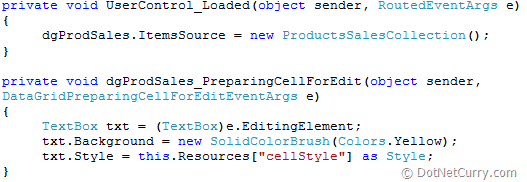
Step 3: In the MainPage.Xaml.cs, add the following code in the Loaded event and apply the Style programmatically to the DataGridCell using ‘PreparingCellForEdit’ event as below:
Step 4: Run the application and click on the cell, the result will be as shown below:

The entire source code of this article can be downloaded over here
This article has been editorially reviewed by Suprotim Agarwal.
C# and .NET have been around for a very long time, but their constant growth means there’s always more to learn.
We at DotNetCurry are very excited to announce The Absolutely Awesome Book on C# and .NET. This is a 500 pages concise technical eBook available in PDF, ePub (iPad), and Mobi (Kindle).
Organized around concepts, this Book aims to provide a concise, yet solid foundation in C# and .NET, covering C# 6.0, C# 7.0 and .NET Core, with chapters on the latest .NET Core 3.0, .NET Standard and C# 8.0 (final release) too. Use these concepts to deepen your existing knowledge of C# and .NET, to have a solid grasp of the latest in C# and .NET OR to crack your next .NET Interview.
Click here to Explore the Table of Contents or Download Sample Chapters!
Was this article worth reading? Share it with fellow developers too. Thanks!
Mahesh Sabnis is a DotNetCurry author and a Microsoft MVP having over two decades of experience in IT education and development. He is a Microsoft Certified Trainer (MCT) since 2005 and has conducted various Corporate Training programs for .NET Technologies (all versions), and Front-end technologies like Angular and React. Follow him on twitter @
maheshdotnet or connect with him on
LinkedIn