Windows Phone 7.1: Developing a Color Palette
Posted by: Mahesh Sabnis ,
on 7/7/2011,
in
Category Windows Phone
Abstract: Windows Phone 7.1 Mango update was released a couple of weeks ago with over 500 new features. We had a new Beta 2 release recently. With all the updates coming at a rapid pace, I had been longing to try out these new updates and this article is the result of my experiments with the Windows Phone SDK. I have created a small application which provides users a color palette, where end-users of the phone can select a color of their choice for settings background color of various controls.
Windows Phone 7.1 Mango update was released a couple of weeks ago with over 500 new features. We had a new Beta 2 release recently. With all the updates coming at a rapid pace, I had been longing to try out these new updates and this article is the result of my experiments with the Windows Phone SDK. I have created a small application which provides users a color palette, where end-users of the phone can select a color of their choice for settings background color of various controls.
In this article, I have also demonstrated DataTemplate, DataBinding and UI orientation features e.g. Portrait and Landscape etc.
Step 1: Open VS2010 and create a Windows Phone application. Make sure that the version you select is 7.1. In the MainPage.Xaml, drop three Buttons and a ListBox as below:
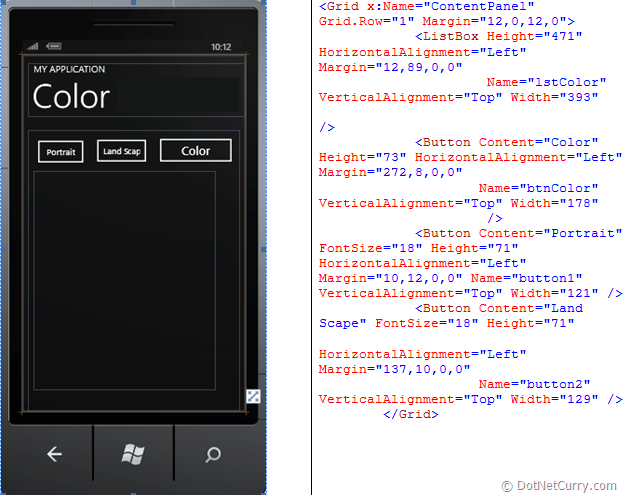
Step 2: In the application, add a new class name ‘ColorPalette’. This class will define properties for storing Color Name and the Brush as below:

Step 3: At the MainPage class level declare the below ObservableCollection<T> for the type ColorPalette as shown below:

Step 4: In the Loaded event of the PhoneApplicationPage class define the following code shown here. This code loads the Colors class and reads all its colors properties into the ColorPalette class created above. The object of this class is then added in the ColorCollection object of the type ObservableCollection<T>.
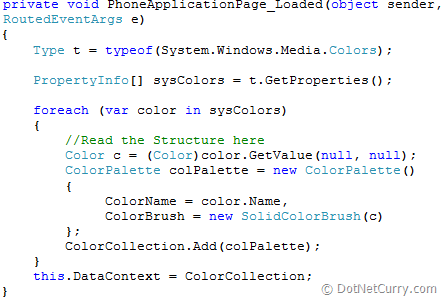
The above code also sets the DataContext of the PhoneApplicationPage class to the ColorCollection ObservableCollection<T> object.
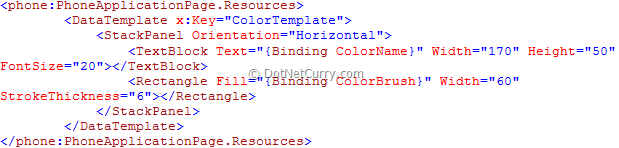
Step 5: In the Resource Dictionary of the PhoneApplicationPage in the XAML code, add a DataTemplate which defines the StackPanel which contains a TextBlock and a Rectangle. This binds with the properties from the ColorPalette class.
Step 6: Change the XAML for the ListBox ‘lstColor’ by settings its ItemsSource property and the ItemTemplate property. Also write click events for the ‘Portrait’ and ‘LandScape’ buttons as below:
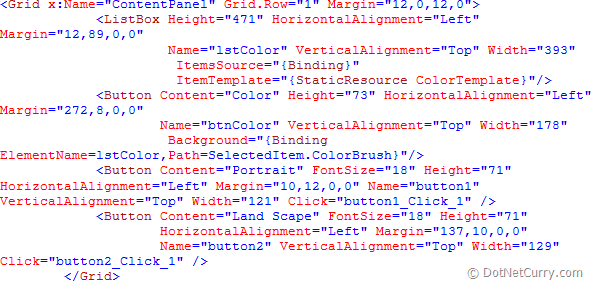
The Background property of the ‘Color’ button is bound with the SelectedItem property of the ListBox ‘lstColor’. The ‘SelectedItem’ property returns a ‘ColorPalette’ object and its property ColorBrush will contain the actual Brush object using which the Background property of the button will set.
Step 7: Write the following code in the Click events of the ‘Portrait’ and ‘LandScape’ as shown below:
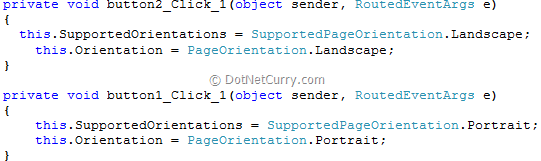
The above code shows the orientation for the Phone.
Task 8: Run the application the result is as below:

Click on the LandScape button

The entire source code of this article can be downloaded over here
This article has been editorially reviewed by Suprotim Agarwal.
C# and .NET have been around for a very long time, but their constant growth means there’s always more to learn.
We at DotNetCurry are very excited to announce The Absolutely Awesome Book on C# and .NET. This is a 500 pages concise technical eBook available in PDF, ePub (iPad), and Mobi (Kindle).
Organized around concepts, this Book aims to provide a concise, yet solid foundation in C# and .NET, covering C# 6.0, C# 7.0 and .NET Core, with chapters on the latest .NET Core 3.0, .NET Standard and C# 8.0 (final release) too. Use these concepts to deepen your existing knowledge of C# and .NET, to have a solid grasp of the latest in C# and .NET OR to crack your next .NET Interview.
Click here to Explore the Table of Contents or Download Sample Chapters!
Was this article worth reading? Share it with fellow developers too. Thanks!
Mahesh Sabnis is a DotNetCurry author and a Microsoft MVP having over two decades of experience in IT education and development. He is a Microsoft Certified Trainer (MCT) since 2005 and has conducted various Corporate Training programs for .NET Technologies (all versions), and Front-end technologies like Angular and React. Follow him on twitter @
maheshdotnet or connect with him on
LinkedIn