Search and Filter Items of an ASP.NET DropDownList using jQuery
Posted by: Suprotim Agarwal ,
on 10/31/2009,
in
Category jQuery and ASP.NET
Abstract: In this short article, I will demonstrate how to search and filter items of an ASP.NET DropDownList using jQuery.
Search and Filter Items of an ASP.NET DropDownList using jQuery
Note that for demonstration purposes, I have included jQuery code in the same page. Ideally, these resources should be created in separate folders for maintainability.
Let us quickly jump to the solution and see how we can search and filter items of a DropDownList
<html xmlns="http://www.w3.org/1999/xhtml">
<head runat="server">
<title>Search and Filter a DropDownList</title>
<script src="Scripts/jquery-1.3.2.min.js"
type="text/javascript"></script>
<script type="text/javascript">
$(function() {
var $txt = $('input[id$=txtNew]');
var $ddl = $('select[id$=DDL]');
var $items = $('select[id$=DDL] option');
$txt.keyup(function() {
searchDdl($txt.val());
});
function searchDdl(item) {
$ddl.empty();
var exp = new RegExp(item, "i");
var arr = $.grep($items,
function(n) {
return exp.test($(n).text());
});
if (arr.length > 0) {
countItemsFound(arr.length);
$.each(arr, function() {
$ddl.append(this);
$ddl.get(0).selectedIndex = 0;
}
);
}
else {
countItemsFound(arr.length);
$ddl.append("<option>No Items Found</option>");
}
}
function countItemsFound(num) {
$("#para").empty();
if ($txt.val().length) {
$("#para").html(num + " items found");
}
}
});
</script>
</head>
<body>
<form id="form1" runat="server">
<div>
<h2>Enter Text in the TextBox to Filter the DropDownList </h2>
<br />
<asp:TextBox ID="txtNew" runat="server"
ToolTip="Enter Text Here"></asp:TextBox><br />
<asp:DropDownList ID="DDL" runat="server" >
<asp:ListItem Text="Apple" Value="1"></asp:ListItem>
<asp:ListItem Text="Orange" Value="2"></asp:ListItem>
<asp:ListItem Text="Peache" Value="3"></asp:ListItem>
<asp:ListItem Text="Banana" Value="4"></asp:ListItem>
<asp:ListItem Text="Melon" Value="5"></asp:ListItem>
<asp:ListItem Text="Lemon" Value="6"></asp:ListItem>
<asp:ListItem Text="Pineapple" Value="7"></asp:ListItem>
<asp:ListItem Text="Pomegranate" Value="8"></asp:ListItem>
<asp:ListItem Text="Mulberry" Value="9"></asp:ListItem>
<asp:ListItem Text="Apricot" Value="10"></asp:ListItem>
<asp:ListItem Text="Cherry" Value="11"></asp:ListItem>
<asp:ListItem Text="Blackberry" Value="12"></asp:ListItem>
</asp:DropDownList>
<br />
<p id="para"></p>
<br /><br />
Tip: Items get filtered as characters are entered in the textbox.
Search is not case-sensitive
</div>
</form>
</body>
</html>
The example starts by caching the following objects into variables
var $txt = $('input[id$=txtNew]');
var $ddl = $('select[id$=DDL]');
var $items = $('select[id$=DDL] option');
On the keyup() event of the textbox, we are calling the searchDdl() method which accepts the textbox value as its parameter.
$txt.keyup(function() {
searchDdl($txt.val());
});
Inside the searchDdl() method, the contents of the DropDownList are emptied and we then use the RegExp object to store the search pattern. In this case, the search modifier is ‘i’ which tells the regular expression to ignore the case of the characters. The expression gets translated to /searchtext/i
Let us analyze this piece of code given below:
var arr = $.grep($items,
function(n) {
return exp.test($(n).text());
});
The $.grep() method finds the elements of an array which satisfy a filter function. The syntax is as follows:
$.grep( array, callback, [invert] )
where the array refers to the set of <option> elements that are searched, and the callback refers to the function to process each item against. In this callback function, we call the .test() method of the RegExp object, passing it the option item text to see if it matches the characters entered by the user. The .grep() this way returns a newly constructed array containing a list of matched items, shown in the code above.
If the array contains matched items, the $.each() iterates over this collection(returned by the $.grep() method) and fires a callback function on each item, which appends the item to the DropDownList. The number of items that match the search are displayed using countItemsFound() function.
if (arr.length > 0) {
countItemsFound(arr.length);
$.each(arr, function() {
$ddl.append(this);
$ddl.get(0).selectedIndex = 0;
}
);
}
else {
countItemsFound(arr.length);
$ddl.append("<option>No Items Found</option>");
}
If the search does not match the items in the DropDownList, we display ‘No Items Found’ using the following code:
$ddl.append("<option>No Items Found</option>");
This is how we search and filter through the list.
Before the user type’s text in the TextBox, the output looks similar to the following:
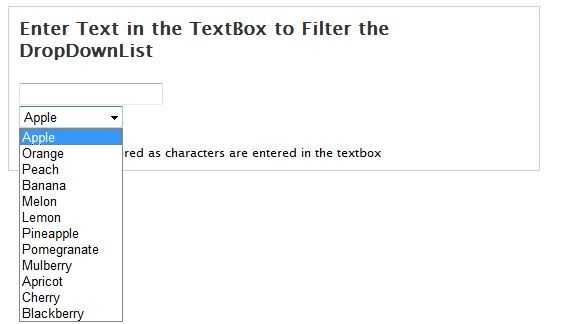
After the user types some text in the TextBox, the output is as shown below:
Tip: If you want to reverse the filter condition, use the [invert] attribute of the $.grep() method. For e.g. if you want to filter the DropDownList with items that ‘do not match’ the text entered by the user, use the [invert] attribute as shown below. This attribute takes a Boolean value.
var arr = $.grep($items,
function(n) {
return exp.test($(n).text());
}, true);
You can see a Live Demo of this article. You can also download the entire source code of this article from here.
This article has been editorially reviewed by Suprotim Agarwal.
C# and .NET have been around for a very long time, but their constant growth means there’s always more to learn.
We at DotNetCurry are very excited to announce The Absolutely Awesome Book on C# and .NET. This is a 500 pages concise technical eBook available in PDF, ePub (iPad), and Mobi (Kindle).
Organized around concepts, this Book aims to provide a concise, yet solid foundation in C# and .NET, covering C# 6.0, C# 7.0 and .NET Core, with chapters on the latest .NET Core 3.0, .NET Standard and C# 8.0 (final release) too. Use these concepts to deepen your existing knowledge of C# and .NET, to have a solid grasp of the latest in C# and .NET OR to crack your next .NET Interview.
Click here to Explore the Table of Contents or Download Sample Chapters!
Was this article worth reading? Share it with fellow developers too. Thanks!
Suprotim Agarwal, MCSD, MCAD, MCDBA, MCSE, is the founder of
DotNetCurry,
DNC Magazine for Developers,
SQLServerCurry and
DevCurry. He has also authored a couple of books
51 Recipes using jQuery with ASP.NET Controls and
The Absolutely Awesome jQuery CookBook.
Suprotim has received the prestigious Microsoft MVP award for Sixteen consecutive years. In a professional capacity, he is the CEO of A2Z Knowledge Visuals Pvt Ltd, a digital group that offers Digital Marketing and Branding services to businesses, both in a start-up and enterprise environment.
Get in touch with him on Twitter @suprotimagarwal or at LinkedIn