Visual Studio Test Professional 2010: Organization of artifacts
Posted by: Subodh Sohoni ,
on 3/6/2010,
in
Category Visual Studio
Abstract: In this article, we will explore Test Plan and Test Run Settings in VSTS 2010 as different artifacts that are used to define the testing efforts.
Management of testing efforts involves planning the execution of tests, tracking the test execution and then controlling the testing efforts so that either they are according to plan or the plan is modified to suite reality of environment. Before we can plan the testing efforts, it is necessary to have artifacts which are used as building blocks for the plan. One of the major artifacts is test cases. In the earlier article we have studied the definition of test case as workitem type. In this article we will view the details of other artifacts and also the way to create them using the ‘Organize’ section of Microsoft Test Manager 2010.
Organize section of MTM has four subsections to manage Test Plan, Test Configuration, Test Cases and Shared Steps.
Test Plan
It is an artifact which works as a container for number of other artifacts like test cases, configuration etc. It is possible to create multiple test plans for a team project. Each of the test plans may reflect different conditions encountered for test planning. My suggestion is to keep the number of test plans in a team project to minimum and only one if possible.
Test plan has properties that define the testing conditions. Some properties are general properties like name, description, owner, state, start date, end date, area path and iteration. The owner is the person who is overall responsible for execution of plan. Start date and end date do not affect the state of the test plan. State values are either active or inactive. When the state is set to inactive, the test plan cannot be viewed or edited through the Plan view of MTM 2010.
Test Plan has a section for providing Run Settings. That is further split into three parts. These parts manage Test Settings, Test Environment and Test Configuration.
Test Settings: These are collection of properties that are assigned to test plan. It gives a direction to tester to do manual testing or an automated testing, use specific role and matching environment that may be virtual or physical and to use specified diagnostic data adaptors to collect diagnostic data during test execution. We can provide separate test settings for manual test runs and automated test runs. Although Default Settings are provided, we can override those by providing a named collection of settings which are customized.
Diagnostic Data Adaptors: These adaptors collect data during the execution of test. Data collected and recorded by them is part of the evidence for the test and if necessary a bug. It can throw light upon the facts of the application execution and provide clarity to developers while doing bug fixing. There are various such adaptors that collect data of different aspect of the application execution while testing. Following is a table of details.
|
Adaptor Name
|
Collected Data
|
Configuration Settings
|
Default
|
|
Action Log and Action Recording
|
Every gesture like mouse clicks, button presses executed by tester
|
Application to record, Recording type, User response delay in recording
|
Enabled
|
|
IntelliTrace Diagnostic Data Adaopter
|
Diagnostic trace for debugging managed applications. For ASP.NET application use remote with environment
|
Events to collect data at, collect data from IIS server, Modules to trace, Processes to trace, Max. amount of disk space for storing data
|
Enabled
|
|
EventLog
|
Event related logged data
|
Event Logs to collect data from, Event types, Max. Number entries to log, to collect or not the events raised during other tests
|
Enabled
|
|
Network Emulation
|
Emulate network of lower bandwidth which is expected during test although physically higher bandwidth exists
|
Profile of network (LAN/ Cable / Dialup etc.)
|
Enabled
|
|
Test Impact
|
Tests to run after code changes
|
Modules to consider, Processes to collect data
|
Not Enabled
|
|
Video Recording
|
Screen capture while test is running
|
Max. time to record screen for during test
|
Not Enabled
|
|
|
|
|
|
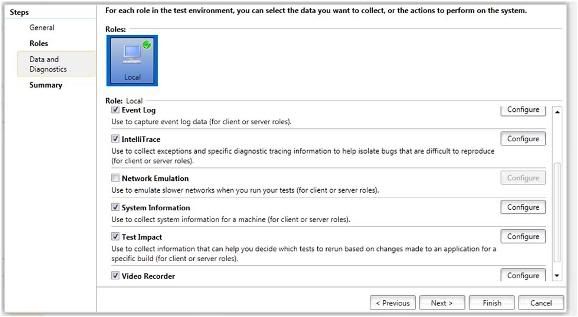
These diagnostic data adopters take space on hard disk to store data and other resources while collecting the data. This can slow down the computer where we are running the tests. While enabling these adopters consideration should be given to this fact and then if necessary only the data should be collected. If we are running any exploratory testing then al the data adopters can be disabled and when running the targeted test only some of them should be enabled. If we encounter a bug which is hard to visualize as well as reproduce, then we should enable more number of diagnostic data adopters and run the test. We may have different named collections of test settings to achieve different combinations.
In this article we have seen Test Plan and Test Run Settings as different artifacts that are used to define the testing efforts. In the next article we will cover other artifacts like Test Configuration, Shared Steps etc.
This article has been editorially reviewed by Suprotim Agarwal.
C# and .NET have been around for a very long time, but their constant growth means there’s always more to learn.
We at DotNetCurry are very excited to announce The Absolutely Awesome Book on C# and .NET. This is a 500 pages concise technical eBook available in PDF, ePub (iPad), and Mobi (Kindle).
Organized around concepts, this Book aims to provide a concise, yet solid foundation in C# and .NET, covering C# 6.0, C# 7.0 and .NET Core, with chapters on the latest .NET Core 3.0, .NET Standard and C# 8.0 (final release) too. Use these concepts to deepen your existing knowledge of C# and .NET, to have a solid grasp of the latest in C# and .NET OR to crack your next .NET Interview.
Click here to Explore the Table of Contents or Download Sample Chapters!
Was this article worth reading? Share it with fellow developers too. Thanks!

Subodh is a Trainer and consultant on Azure DevOps and Scrum. He has an experience of over 33 years in team management, training, consulting, sales, production, software development and deployment. He is an engineer from Pune University and has done his post-graduation from IIT, Madras. He is a Microsoft Most Valuable Professional (MVP) - Developer Technologies (Azure DevOps), Microsoft Certified Trainer (MCT), Microsoft Certified Azure DevOps Engineer Expert, Professional Scrum Developer and Professional Scrum Master (II). He has conducted more than 300 corporate trainings on Microsoft technologies in India, USA, Malaysia, Australia, New Zealand, Singapore, UAE, Philippines and Sri Lanka. He has also completed over 50 consulting assignments - some of which included entire Azure DevOps implementation for the organizations.
He has authored more than 85 tutorials on Azure DevOps, Scrum, TFS and VS ALM which are published on
www.dotnetcurry.com.Subodh is a regular speaker at Microsoft events including Partner Leadership Conclave.You can connect with him on
LinkedIn .