In a previous article Windows Azure: Working with Blob Storage in an ASP.NET Application, we have explored how we can use the Cloud BLOB storage service to store and manage BLOB content. Similarly, we can also store structured data on the cloud using Table Service. The Table service component of the Windows Azure Storage service is a very simple, highly scalable and cost effective solution provided to store data. It is a service hosted in Windows Azure Data Center and its access is provided through HTTP-based REST APIs.
Using Table service, a very simple structured table can be created where you can store data of your entities in a serializable form. Since the Table Storage service is not relational data, it does not offer foreign key or any joins.
The Entity Definition
To define an entity, you can make use of a .NET Programming Language like C#. The entity declared must have the following 3 properties:
PartitionKey:
- This is the key which is used to partition or split the table into smaller partitions. The value used for this partition or splitting is known as Partition Key. Logically this is a value that represents a specific value to form a group. For example in the Employee table containing EmpNo, EmpName, DeptName, Salary properties; the DeptName can be used as aPartition key. All Employees having same DeptName can be an individual partition.
- Using Partitioning, the table storage can scale out the data by storing table data in separate physical partitions.
RowKey:
- To identify an unique entity in the partition, the RowKey is used. The entity can be unique in the same partition only. It is possible that an entity in a separate physical partition can have the same row key.
- For example, if separate EmpNo is specified by DeptName, then in each Department, EmpNo can be repeated.
Timestamp: This property is generated on the server side and is a readonly property. It is used to keep the record of the entity specified, when it is inserted into the table. The responsibility of this property is that it is used to handle concurrency. When you want to update an entity in the table, you can check if the timestamp of your local version is same as the server, if yes then an update is possible, otherwise it indicates that the entity is modified by another application or process.
How Data is Stored in Table Service
Table Service maintains a minimal schema for the entity with logical columns for the above three properties and a PropertyBag where properties from the entity are stored. This can be explained as below:
Let’s say the Entity created in C# is as below:
[DataServiceKey("PartitionKey","RowKey")]e
public class Employee
{
public string Timestamp{ get; set; }
public string PartitionKey { get; set; }
public string RowKey { get; set; }
public int EmpNo{get;set;}
public string EmpName{get;set;}
public int Salary{get;set;}
}
then the Table service will store data as below:
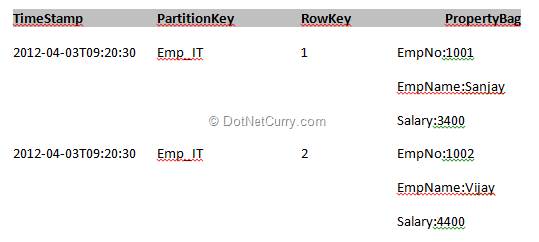
One important point here in case of Table service is that, it has a specific schema for table with columns, as shown in the above example. The entity can be easily extended by adding new properties e.g. if the Employee entity created above is modified as below:
[DataServiceKey("PartitionKey","RowKey")]e
public class Employee
{
public string Timestamp{ get; set; }
public string PartitionKey { get; set; }
public string RowKey { get; set; }
public int EmpNo{get;set;}
public string EmpName{get;set;}
public int Salary{get;set;}
public string Designation {get;set;}
}
Then you can store entity data in Table without modifying either Table Structure or existing data from it. So now the data stored can be as below:
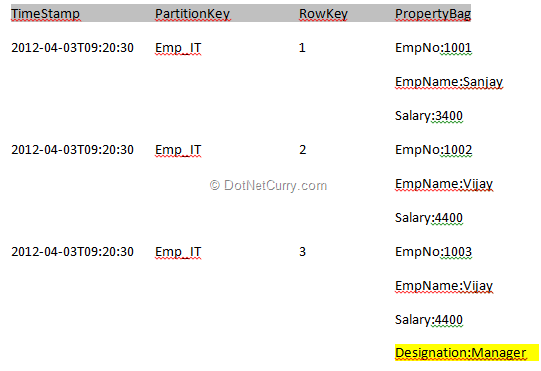
So in the above table, the last row has the Designation property value for Employee No 1003.
Creating Azure Table Service Application using Visual Studio 2010
In the following steps, we will create a Windows Azure Project. For this application, I am using Windows Azure SDK 1.6.
Step 1: Open VS2010 and create a Windows Azure Project, name it as ‘Mah_TableServiceApplication’. Name the Web Role project as ‘ProductManagement’. Since the TableService exposes HTTP REST APIs through the implementation of ADO.NET Data Service, we need to add the following references in the Web Role Project:
- System.Data.Services.
- System.Data.Services.Client
Right click on the ProductManagement Web Role, and from settings, add a new setting as shown below:

Step 2: In the project, add a new class file and name it as ‘TableServiceClasses.cs’. Add the following code in it:
namespace ProductManagement
{
/// <summary>
/// The base class contains PartitionKey, RowKey, Timestamp
/// </summary>
public class ITProducts : TableServiceEntity
{
public string Manifacturer { get; set; }
public string ProductName { get; set; }
public int Price { get; set; }
}
/// <summary>
/// The context class used for Performing CRUD operations
/// with entities. This makes use of ADO.NET Data Services
/// TableServiceContext: The base class Represents ADO.NET Data Service
/// The "DataServiceContext" class used for Windows Azure Table Service
/// </summary>
public class ITProductsContext : TableServiceContext
{
//S1: Read Account Inforormation from the Configuration file
private static CloudStorageAccount tableStorageAccount
= CloudStorageAccount.FromConfigurationSetting("DataConnectionString");
/// <summary>
/// S2 : Get the Account Details e.g.Credentials to Deal with the Context
/// </summary>
public ITProductsContext() :base(tableStorageAccount.TableEndpoint.AbsoluteUri,
tableStorageAccount.Credentials)
{
}
/// <summary>
/// S3: Property for Applying Query
/// </summary>
public DataServiceQuery<ITProducts> ITProducts
{
get
{
return CreateQuery<ITProducts>("ITProducts");
}
}
}
}
In the above code, the class ITProducts is used as entity using which data will be stored in the Table Storage. This class is inherited from ‘TableServiceEntity’. This class provides properties like PartitionKey, RowKey and Timestamp. The class ‘ITProductContext’ is inherited from ‘TableServiceContext’ base class. This class represents the DataServiceContext objects to use with Windows Azure Table Service.
Step 3: In the Web project, add a new Web Form and name it as ‘Page_Create_Table.aspx’. Design the page as shown below:

Step 4: Use the following references in the Code behind:
using Microsoft.WindowsAzure;
using Microsoft.WindowsAzure.ServiceRuntime;
using Microsoft.WindowsAzure.StorageClient;
Step 5: Write the following code in the click event of the ‘Create Table’. This will create a new Table in the Table Storage
protected void btnCreateTable_Click(object sender, EventArgs e)
{
try
{
CloudStorageAccount.SetConfigurationSettingPublisher((configName,configSetter) =>
{
configSetter(RoleEnvironment.GetConfigurationSettingValue(configName));
});
var tableStorageAccount =
CloudStorageAccount.FromConfigurationSetting("DataConnectionString");
CloudTableClient productTableClient = tableStorageAccount.CreateCloudTableClient();
productTableClient.CreateTableIfNotExist("ITProducts");
}
catch (Exception ex)
{
lblError.Text = ex.Message;
}
}
The above code creates an instance of ‘CloudStorageAccount’ by reading the configuration using ‘DataConnectionString’. Using the ‘CreateCloudTable()’ method of the CloudStorageAccount object, the CloudTableClient object gets created, which then creates table ‘ITProducts’.
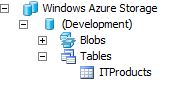
Step 6: Run the application and click on the ‘Create Table’ button, you will see the table created using the server explorer as shown below:
Step 7: Write the following code in the click event of the ‘Add Product’, this will add a new record which can be seen in the Table explorer as shown below:
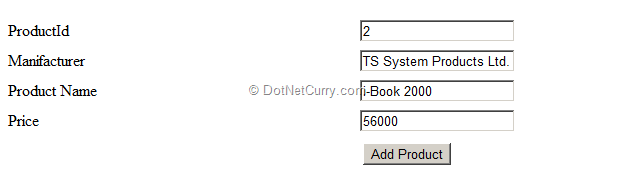
Now right click on the ‘ITProducts’ table in the Server Explorer, you will find the entity added in it as shown below:

Step 8: Add the following helper method in the page class, this will read all rows from the Table and display them in the GridView. This method is as shown below:
/// <summary>
///Helper method to Query the ITProductContext Class and
///Read all Products
/// </summary>
void GetProductsInGrid()
{
try
{
ITProductsContext objContext = new ITProductsContext();
//Query to the Context Class for Products in Sorted by RowKey
gdvITProducts.DataSource =
objContext.ITProducts.ToList().OrderBy(p => p.RowKey);
gdvITProducts.DataBind();
}
catch (Exception)
{
}
}
protected void Page_Load(object sender, EventArgs e)
{
CloudStorageAccount.SetConfigurationSettingPublisher((configName, configSetter) =>
{
configSetter(RoleEnvironment.GetConfigurationSettingValue(configName));
});
if (IsPostBack == false)
{
GetProductsInGrid();
}
}
Step 9: Run the application and you will get the following result:

Step 10: Add GridView Editing, Updating, Canceling and Deleting events to provide complete functionality of the Table service as below:
protected void gdvITProducts_RowEditing(object sender, GridViewEditEventArgs e)
{
gdvITProducts.EditIndex = e.NewEditIndex;
GetProductsInGrid();
}
/// <summary>
/// Helper method to delete the Entity
/// </summary>
/// <param name="sender"></param>
/// <param name="e"></param>
protected void gdvITProducts_RowDeleting(object sender, GridViewDeleteEventArgs e)
{
GridViewRow row = gdvITProducts.Rows[e.RowIndex];
string manifacturer = row.Cells[2].Text;
string prodid = ((Label)row.Cells[1].FindControl("lblRowKey")).Text;
if (manifacturer != string.Empty && prodid != string.Empty)
{
DeleteProductByManifacturerAndProductId(manifacturer,prodid);
}
}
protected void gdvITProducts_RowCancelingEdit(object sender, GridViewCancelEditEventArgs e)
{
gdvITProducts.EditIndex = -1;
GetProductsInGrid();
}
/// <summary>
/// Method to Update an Entity from the Table using GridView Programming
/// </summary>
/// <param name="sender"></param>
/// <param name="e"></param>
protected void gdvITProducts_RowUpdating(object sender, GridViewUpdateEventArgs e)
{
try
{
//S1 : Get The TableServiceContext Object
ITProductsContext objContext = new ITProductsContext();
//S2: Read the PartitionKey and RowKey
GridViewRow row = gdvITProducts.Rows[e.RowIndex];
string manifacturer = row.Cells[2].Text;
string prodid = ((Label)row.Cells[1].FindControl("lblRowKey")).Text;
//S3: Read the Product using PartitionKey and RowKey
var objProduct = (from prod in objContext.ITProducts.ToList()
where prod.Manifacturer == manifacturer &&
prod.RowKey == prodid
select prod).First();
//S4 : Now Update Price and ProductName
objProduct.ProductName =
((TextBox)gdvITProducts.Rows[e.RowIndex].Cells[3].Controls[0]).Text;
objProduct.Price =
Convert.ToInt32(((TextBox)gdvITProducts.Rows[e.RowIndex].Cells[4].Controls[0]).Text);
//S5: Update Entity
objContext.UpdateObject(objProduct);
objContext.SaveChanges();
gdvITProducts.EditIndex = -1;
GetProductsInGrid();
}
catch (Exception ex)
{
lblError.Text = ex.Message;
}
}
/// <summary>
/// Helper method used to delete the Entry from the Table using
/// PartitionKey (Here it is Manifacturer) and RowKey (Here ProductId)
/// </summary>
/// <param name="manifacturer"></param>
/// <param name="prodId"></param>
void DeleteProductByManifacturerAndProductId(string manifacturer,string prodId)
{
ITProductsContext objContext = new ITProductsContext();
var objProduct = (from prod in objContext.ITProducts.ToList()
where prod.Manifacturer == manifacturer &&
prod.RowKey == prodId
select prod).First();
objContext.DeleteObject(objProduct);
objContext.SaveChanges();
GetProductsInGrid();
}
}
Step 11: Run and test the above functionality.
Deploying the Application on the Cloud using Cloud Portal
Step 1: Open the Cloud Portal using www.windowsazure.com. Login on the portal using your Live Id. Create a new Hosted Service (you should have the Storage Account) using the ribbon provided on the browser:

Step 2: Get the Storage account Access keys from the portal and add the key and the storage account name in the ‘ServiceConfiguration.Cloud.csdef’ as shown below:
<Setting name="DataConnectionString"
value="DefaultEndpointsProtocol=http;AccountName=<MY_NAME>;AccountKey=<MY-KEY>"/>
Step 3: Right-Click on the cloud application and select package, the screens shown below will ask about the package configuration. Select ‘Cloud’ in Service Configuration Combobox as shown below:
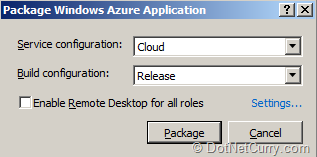
Step 4: Now click on the ‘New Hosted Service’ and enter the information as shown below:

Click on OK and then a Warning will be displayed. Just select ‘yes’. The deployment will start with a status to see, as shown below:

Step 5: After deployment, the status will be as shown below:

You can now test the application using the URL DNS provided.
Conclusion: Azure Table service provides a more structured and scalable way to manage entities over cloud. Instead of using SQL Azure, you can have partition oriented data management of data.
The entire source code of this article can be downloaded over here
This article has been editorially reviewed by Suprotim Agarwal.
C# and .NET have been around for a very long time, but their constant growth means there’s always more to learn.
We at DotNetCurry are very excited to announce The Absolutely Awesome Book on C# and .NET. This is a 500 pages concise technical eBook available in PDF, ePub (iPad), and Mobi (Kindle).
Organized around concepts, this Book aims to provide a concise, yet solid foundation in C# and .NET, covering C# 6.0, C# 7.0 and .NET Core, with chapters on the latest .NET Core 3.0, .NET Standard and C# 8.0 (final release) too. Use these concepts to deepen your existing knowledge of C# and .NET, to have a solid grasp of the latest in C# and .NET OR to crack your next .NET Interview.
Click here to Explore the Table of Contents or Download Sample Chapters!
Was this article worth reading? Share it with fellow developers too. Thanks!
Mahesh Sabnis is a DotNetCurry author and a Microsoft MVP having over two decades of experience in IT education and development. He is a Microsoft Certified Trainer (MCT) since 2005 and has conducted various Corporate Training programs for .NET Technologies (all versions), and Front-end technologies like Angular and React. Follow him on twitter @
maheshdotnet or connect with him on
LinkedIn