Coded UI Test (CUIT) using Visual Studio 2010
Posted by: Gouri Sohoni ,
on 5/10/2011,
in
Category Visual Studio
Abstract: In this article, we will see how Coded UI Test can be created in Visual Studio 2010 by recording the action using CUIT Builder, how to add assertion and how CUIT can be executed. In the article, we will also see another way of creating CUIT by first executing the test case by using Microsoft Test Manager 2010, recording the actions, convert the actions to Code using Visual Studio 2010 and executing it.
Till the previous version of Visual Studio and its various tools for testing, there was no way a User Interface could be tested as automated tests. With Visual Studio 2010, a brand new feature has been added called Coded UI Test or commonly known as ‘CUIT’. This new type of unit test is available with Visual Studio 2010 Ultimate or Premium version. It provides functional testing for the user interface and the code gets created with the help of high level languages like C# or VB.NET.
You can create Coded UI Test only by using Visual Studio 2010. One way is by using the existing manual recording and the other is by creating a recording using CUIT Builder. If we have already executed our manual test case with the help of Microsoft Test Manager 2010 (a new installable and a separate UI for manual testing with Visual Studio 2010 Ultimate or Microsoft Test Professional 2010), we will have the actions recorded based on which code can be generated.
Update: Part II and Part III of this article can be found here
Coded UI Test (CUIT) - Convert Manual Test Case to Code using Visual Studio 2010 and
In this article, we will discuss how to create our own action recordings, add assertions as and when required and convert all these actions to its code, with the help of CUIT Builder. We have direct support for recording the actions to technologies like Windows Application, Web Application, and WPF Application and also to Silverlight, with the help of feature pack. In case we want to extend support to any third party application, various APIs have been exposed which can be extended as and when required.

In the diagram shown above, you can view that the lowest level is for the technology specific layer. The second layer is the abstraction layer which helps in abstracting rest of the code from different technologies. Over it, you can see record and playback. First the steps are recorded and later filtered (depending upon rule) and converted to code (which can be with high level languages like C# or VB.NET as already mentioned). The playback engine comes with an API and property provider. This will give the information about various properties supported by the control and also for browser specific things like navigation. The top layer currently supports two clients. One is Microsoft Test runner 2010, which provides the Fast Forward functionality. The second is Visual Studio 2010 which provides Coded UI which will generate code, after recording actions. Last option is to add hand written code.
Let us take an example of recording the actions by starting browser, entering URL and other actions. The feature of CUIT involves intent aware recording. Eg: In case we want to start MS Excel, clicked on the Start button, entered Excel in Search and then selected Microsoft Excel 2010, then the recording will only be done while Excel is launched.
Let us see some steps:
Step 1. With Visual Studio 2010 launched, create a new project with the template of Test Project as shown beliw. The default UnitTest1.cs file added can be deleted. You can select a language of your choice.

Step 2. Click on the Test menu, Select New Test and select the template of Coded UI Test, provide the name for .cs file and then a dialog with 2 options will be displayed as follows:

Step 3. Let us select the radio button for “Record actions, edit UI maps or add assertions”. We will start seeing the CUIT Builder on the right side bottom corner of the screen as shown. Click on the icon for starting the recording
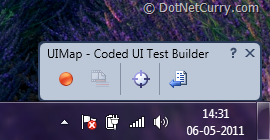
Step 4. Click on the start button and start the browser Internet Explorer. Enter the url as http://www.ssgsonline.net in the address bar. Take the mouse to the ALM assessment services (wait for a couple of sec) and hover over Consulting Services. Click on the icon to pause recording from CUIT Builder and then click on ‘show recorded steps’. Observe that the mouse hovering is also been recorded as action.

Step 5. Resume the recording and click on the first product for eLearning. Let us generate code for all previous actions. Click on the icon to pause recording and then click on generate code. The default name for the recorded method is seen which can be changed to something meaningful.
Step 6. Just recording the actions may not be useful as we also need to validate certain actions. This is similar to using Assert in unit test where we can equate the actual and expected value. Let us add assertion in terms of the price for the product. Click on ‘Add assertion’ icon and then add assert method so that the price USD 23.00 is taken as the value for passing or failing the test.

Step 7. Resume the recording, close the browser and generate code by giving a suitable name. Close the CUIT Builder so that the control goes back to the Visual Studio. We can now see the 3 methods (we created the recording for) added as follows:

Observe the attribute for the method.
Step 8. Open the Solution Explorer and view the different references added. The 4 main components which get added with CUIT can be seen below

All the actions recorded will be in UIMap.Designer.cs. In case you want any custom code to be added, then it is recommended to put it in the partial class file called UIMap.cs. UIMap.uitest file will show all the xml equivalent and the .cs file will have the calling code as is shown in previous step.
Step 9. The code generated for the method can be viewed by selecting the method, right clicking on it and select the option of ‘Go To Definition’

Step 10. Now that our Coded UI Test code is created, we can execute our CUIT from Test View. Test View Windows can be viewed by selecting Test menu, windows option followed by Test View. We need to refresh the view so as to see the newly added tests. The execution of the test will show all the actions we have recorded and finally give the result in the Test Results area.
The new actions can be recorded when required by right clicking on the empty area in code window and selecting ‘Use Coded UI Test Builder’ from ‘Generate Code for Coded UI Test’ option. With feature pack 2 installed, we can even have Coded UI Test Editor which can give following feature when selected with UIMap.UITest file and Open selected

Conclusion
In this article, we have seen how Coded UI Test can be created by recording the action using CUIT Builder, how to add assertion and how CUIT can be executed. In the article, we have also seen another way of creating CUIT by first executing the test case by using Microsoft Test Manager 2010, recording the actions, convert the actions to Code using Visual Studio 2010 and executing it.
This article has been editorially reviewed by Suprotim Agarwal.
C# and .NET have been around for a very long time, but their constant growth means there’s always more to learn.
We at DotNetCurry are very excited to announce The Absolutely Awesome Book on C# and .NET. This is a 500 pages concise technical eBook available in PDF, ePub (iPad), and Mobi (Kindle).
Organized around concepts, this Book aims to provide a concise, yet solid foundation in C# and .NET, covering C# 6.0, C# 7.0 and .NET Core, with chapters on the latest .NET Core 3.0, .NET Standard and C# 8.0 (final release) too. Use these concepts to deepen your existing knowledge of C# and .NET, to have a solid grasp of the latest in C# and .NET OR to crack your next .NET Interview.
Click here to Explore the Table of Contents or Download Sample Chapters!
Was this article worth reading? Share it with fellow developers too. Thanks!
Gouri is a Trainer and Consultant on Azure DevOps and Azure Development. She has an experience of three decades in software training and consulting. She is a graduate from Pune University and PGDCA from Pune University. Gouri is a Microsoft Most Valuable Professional (MVP) - Developer Technologies (Azure DevOps), Microsoft Certified Trainer (MCT) and a Microsoft Certified Azure DevOps Engineer Expert. She has conducted over 150 corporate trainings on various Microsoft technologies. She is a speaker with Pune User Group and has conducted sessions on Azure DevOps, SQL Server Business Intelligence and Mobile Application Development. Gouri has written more than 75 articles on Azure DevOps, TFS, SQL Server Business Intelligence and SQL Azure which are published on
www.sqlservercurry.com and
www.dotnetcurry.com. You can connect with her on
LinkedIn.