Using SharePoint List Data in Microsoft Expression Blend
Posted by: Pravinkumar Dabade ,
on 5/26/2011,
in
Category SharePoint
Abstract: In this article we will see how to fetch SharePoint List data and generate an XML file. We will then use this XML file as a ‘Sample Data’ in Microsoft Expression Blend for our Silverlight Application.
In this article we will see how to fetch SharePoint List data and generate an XML file. We will then use this XML file as a ‘Sample Data’ in Microsoft Expression Blend for our Silverlight Application. For this demonstration, we will have to first create a SharePoint site. The steps to create a SharePoint Site using a Team site is the same as shown in my previous article SharePoint Dashboard with Common Filters using PerformancePoint Services 2010. Once your site is ready, let’s create a SharePoint custom list with the name ‘Customers’ and add the following fields as shown below –

Now we will generate a XML file which will contain the list data in form of XML using SharePoint Client Object model.
So let’s create a Console application with the name ‘GenerateXMLData’ and write code as shown below – First add a reference to the following DLL files in our Console application –
-
Microsoft.SharePoint.Client.dll.
-
Microsoft.SharePoint.Client.Runtime.dll
You can find these DLL files under – ‘C:\Program Files\Common Files\Microsoft Shared\Web Server Extensions\14\ISAPI’. Now import the following namespaces in our Program.cs file – using Microsoft.SharePoint.Client; using System.IO;

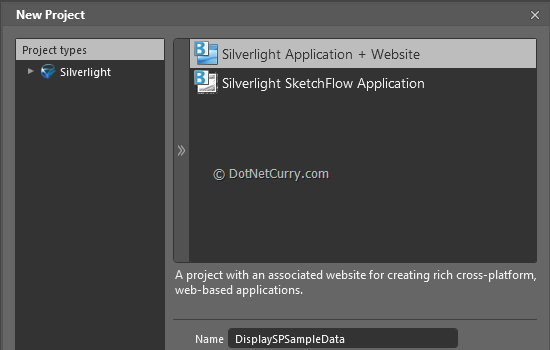
Hit ‘F5’ to run the application and you will see the XML file generated on your ‘C:\’. Now let’s design the Silverlight application using Microsoft Expression Blend and name it as ‘DisplaySPSampleData’ as shown below –
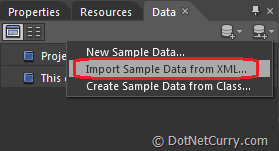
Import the XML file which we just created in the above steps. Go to 'Data' window in Blend and click on 'Create Data Sample' arrow and click on 'Import Sample Data from XML' as shown below -
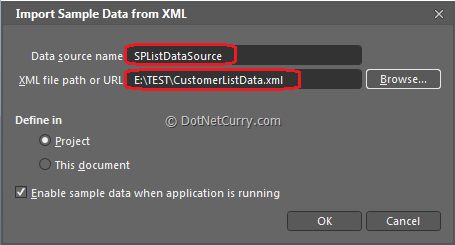
You will be prompted to enter the data source name and browse the XML file as shown below -
You will see all the columns of 'Customers' list which we chose during creation of our XML files. Now drag and drop 'CustomerName' field on the MainPage.xaml as a Listbox. Click on the 'Details Mode' and drag and drop CustomerID, CustomerName, City, Country and JoiningDate on the form to show the details as shown below -
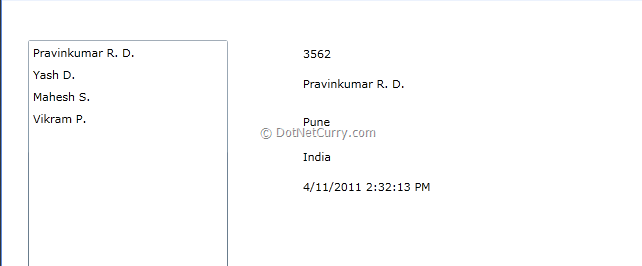
Now hit 'F5'to run the application and see how Master-Details data is shown in the browser with SharePoint data.
Conclusion - In this article, we have seen how to fetch SharePoint List data and generate an XML file. We have then used this XML file as ‘Sample Data’ in Microsoft Expression Blend for Silverlight Application.
This article has been editorially reviewed by Suprotim Agarwal.
C# and .NET have been around for a very long time, but their constant growth means there’s always more to learn.
We at DotNetCurry are very excited to announce The Absolutely Awesome Book on C# and .NET. This is a 500 pages concise technical eBook available in PDF, ePub (iPad), and Mobi (Kindle).
Organized around concepts, this Book aims to provide a concise, yet solid foundation in C# and .NET, covering C# 6.0, C# 7.0 and .NET Core, with chapters on the latest .NET Core 3.0, .NET Standard and C# 8.0 (final release) too. Use these concepts to deepen your existing knowledge of C# and .NET, to have a solid grasp of the latest in C# and .NET OR to crack your next .NET Interview.
Click here to Explore the Table of Contents or Download Sample Chapters!
Was this article worth reading? Share it with fellow developers too. Thanks!
Pravinkumar, works as a freelance trainer and consultant on Microsoft Technologies. He is having over 10 years of experience in IT and is also a Microsoft Certified Trainer(MCT). He has conducted various corporate trainings on all versions of .NET Technologies including .NET, SharePoint Server, Microsoft SQL Server, Silverlight, ASP.NET, Microsoft PerformancePoint Server 2007 (Monitoring). He is passionate about learning new technologies from Microsoft. You can contact Pravinkumar at dabade[dot]pravinkumar [attherate] gmail[dot]com